
You will need a paid Zapier Subscription to integrate your CRM/App, as we have to utilize the Webhooks feature.
- Inbound - Send Contacts to SalesAi
- Outbound - Send Post Call Data back to HubSpot
Inbound - Send contacts to SalesAi
-
-
Log in to your Zapier account or create a new one.
-
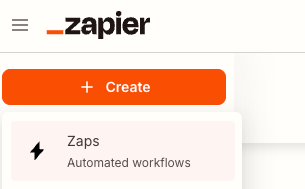
In the Zapier dashboard, click Create in the top-left corner and select Zaps.
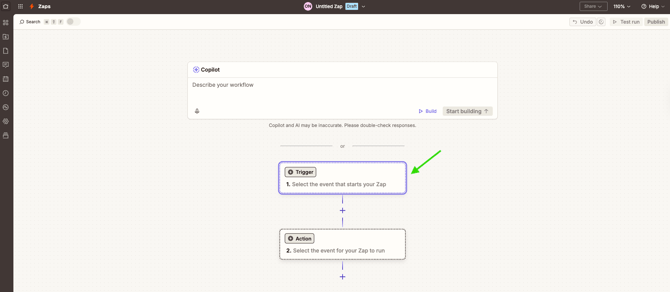
c. Click the Trigger box within the Zap editor.
-
-
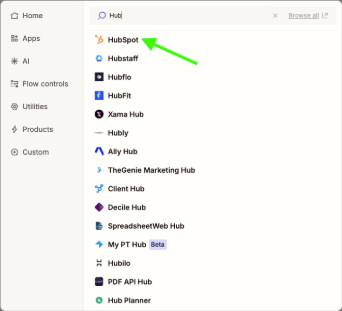
- Search for and select HubSpot as your trigger app.
b. Choose your trigger event. Common options include New Contact in List (sometimes referred to as Segments) or New Form Submission. -
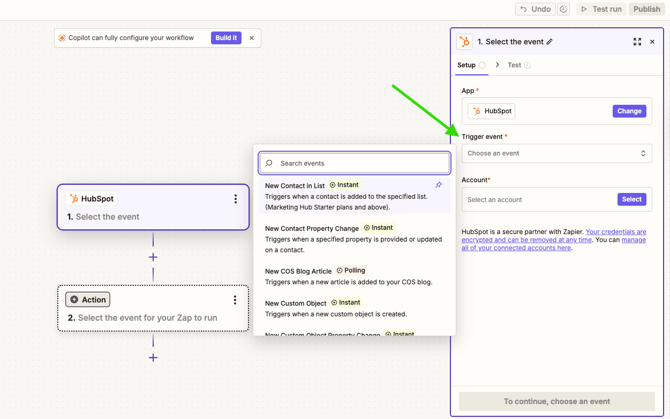
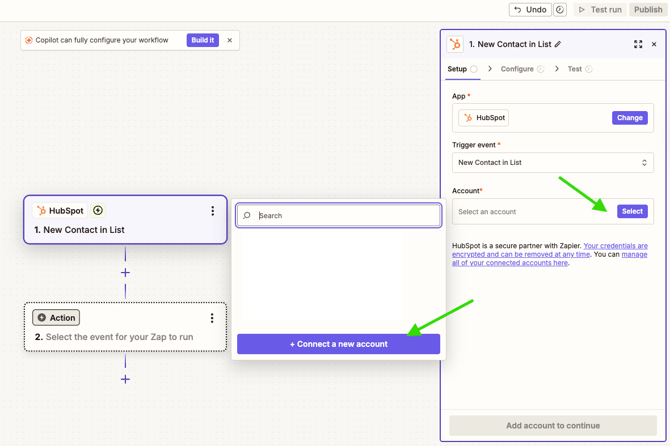
- Connect your HubSpot account to Zapier.
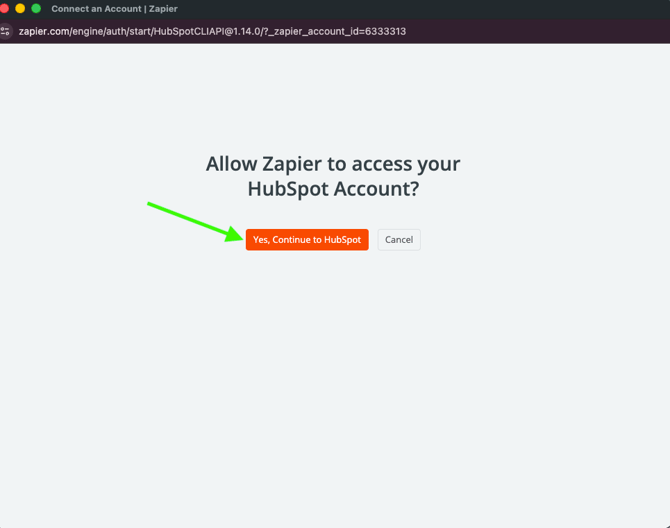
- Grant permission for Zapier to access your HubSpot data.
-
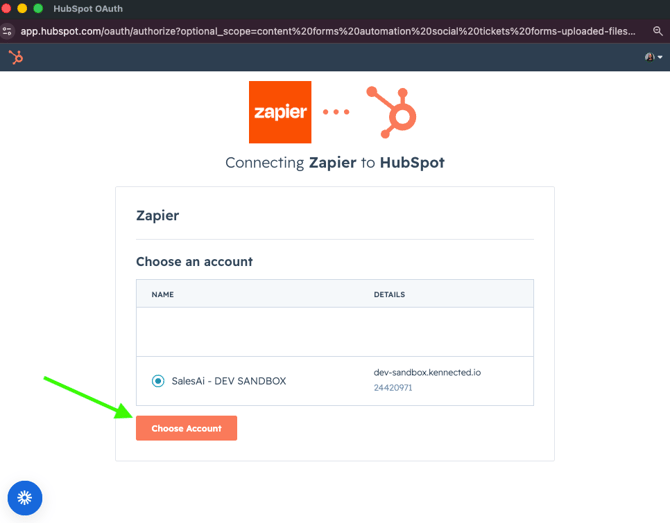
- Select the specific HubSpot account you wish to use.
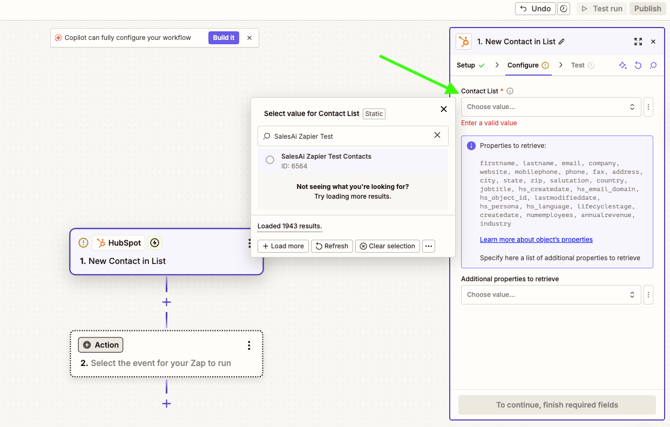
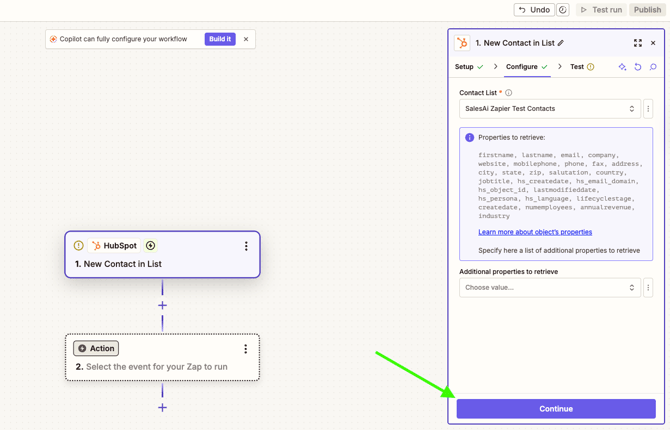
- Configure the trigger by choosing the relevant list, form, or object based on your selected event.
Click Continue. -
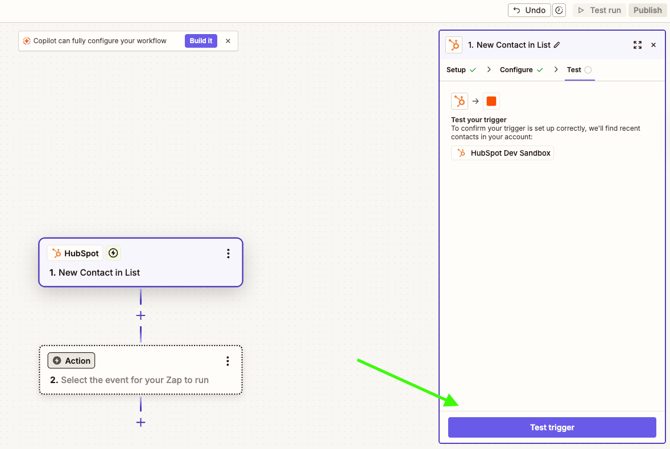
- Click Test Trigger.
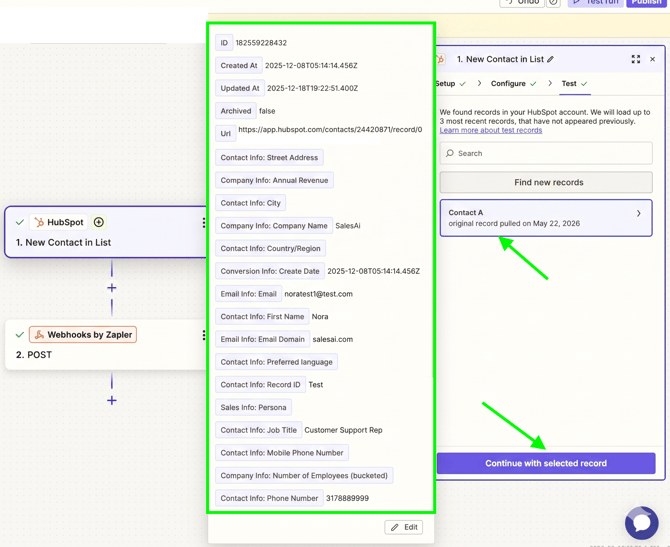
- When a test record appears, select it and click Continue with selected record.
Creating the SalesAi Webhook
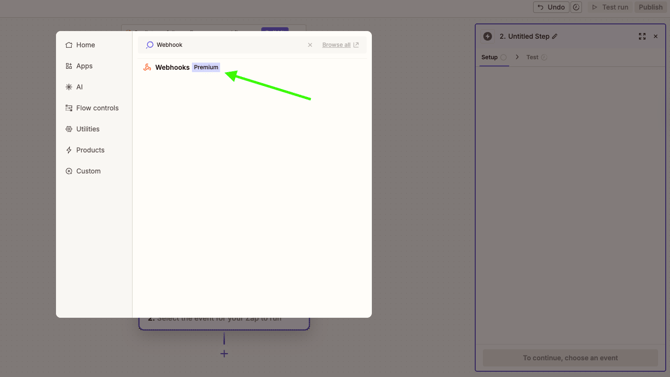
- In the Action box that appears, search for and select Webhooks by Zapier.
-
- Open the Event dropdown menu and select POST.
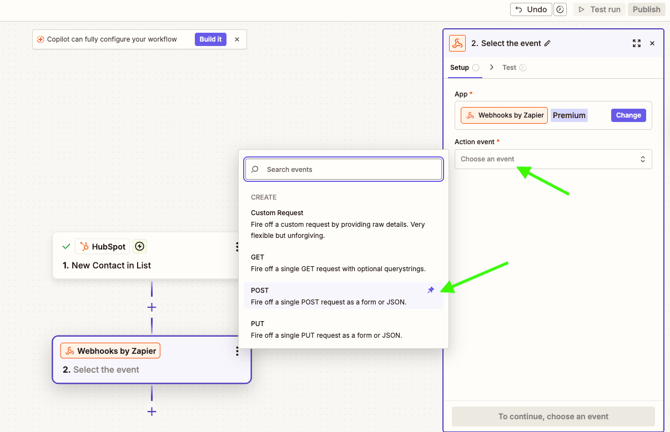
- Click Continue.
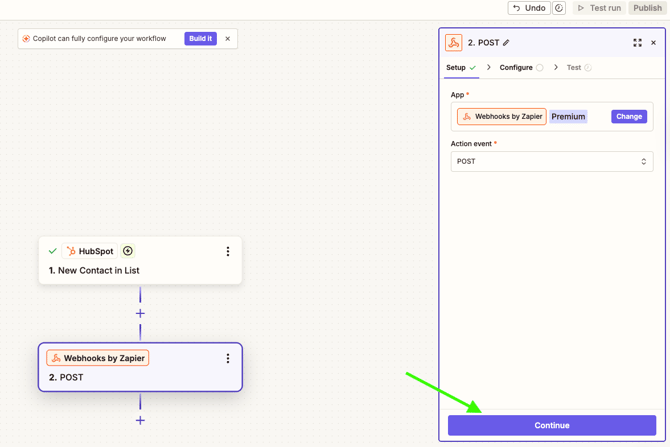
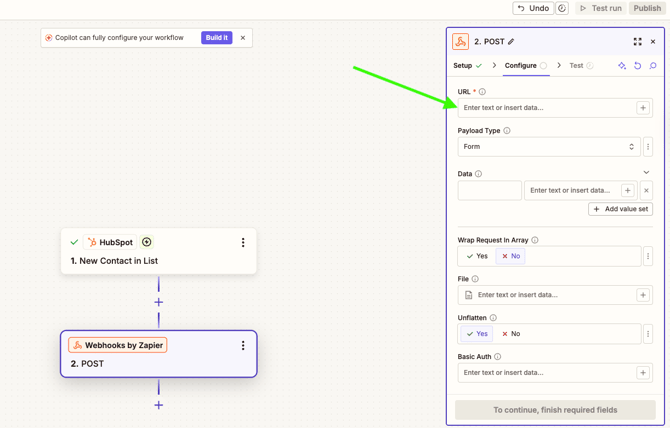
- You will now need to retrieve and paste the SalesAi Webhook URL into the URL field in Zapier.
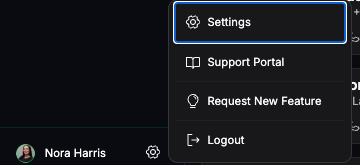
- Navigate to your SalesAi dashboard. Click the Gear icon (Settings) in the bottom-left corner.
- Under the Integrations section, find Webhooks and click Manage.
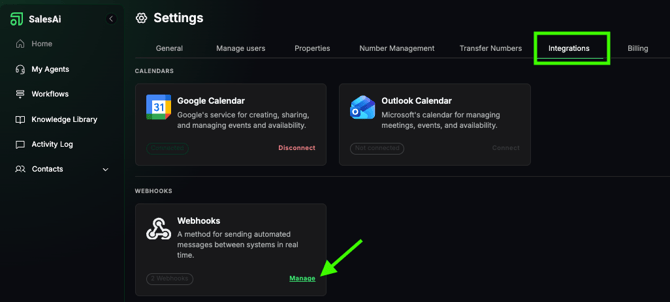
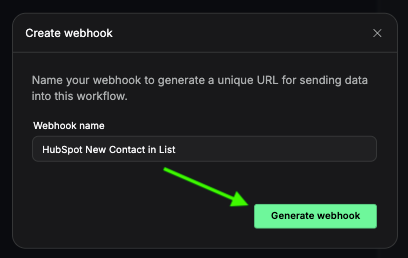
- In the side panel, click Add webhook.

- Provide a descriptive name (e.g., "HubSpot Inbound Contacts") and click Generate webhook.
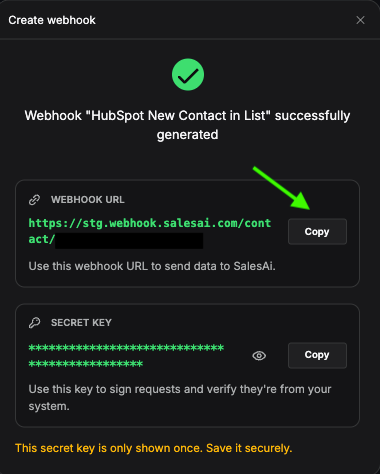
- Copy the newly generated Webhook URL.
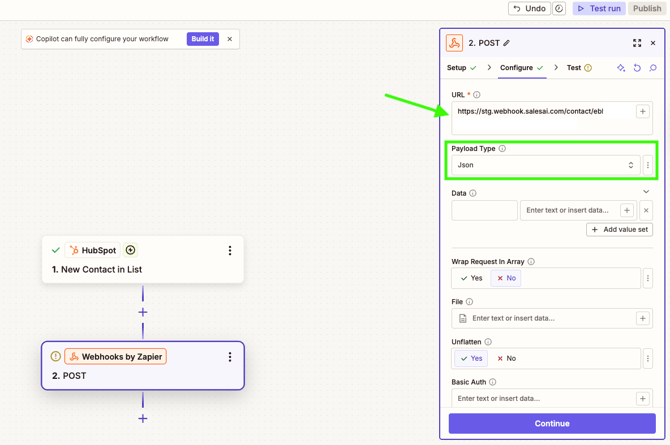
- Return to Zapier, paste the URL into the URL field, and set the Payload Type to Json.
- Map your HubSpot data to SalesAi using the required field names. We recommend sending first_name, last_name, email, and phone. You can also include company_name and job_title. Enter these keys exactly as shown in the image below.
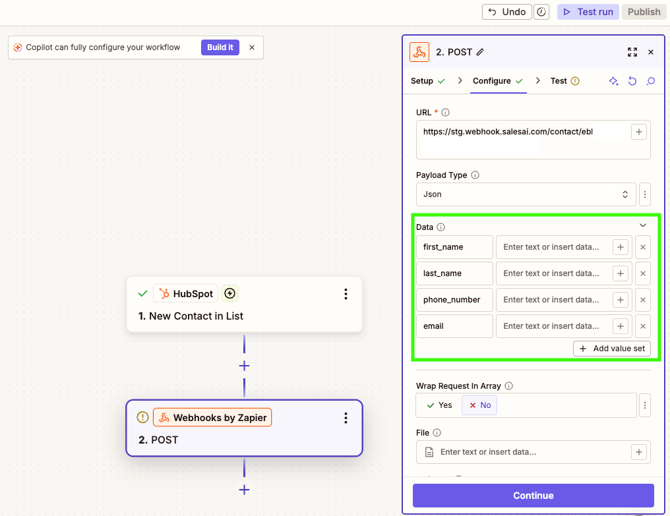
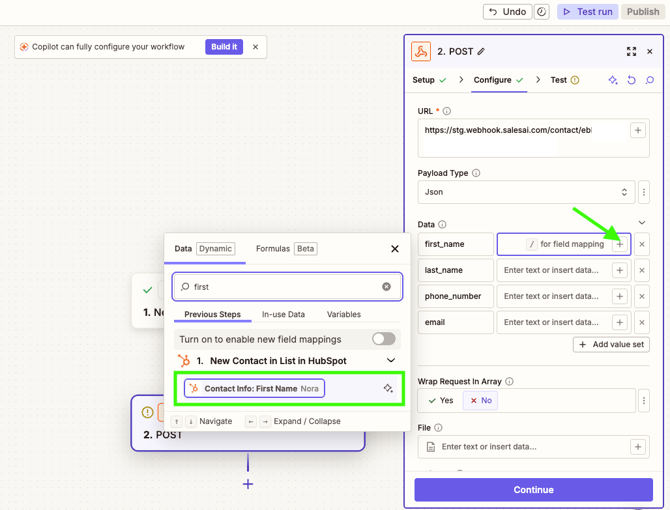
- Click the + icon in the value fields to map corresponding data from your HubSpot test record.
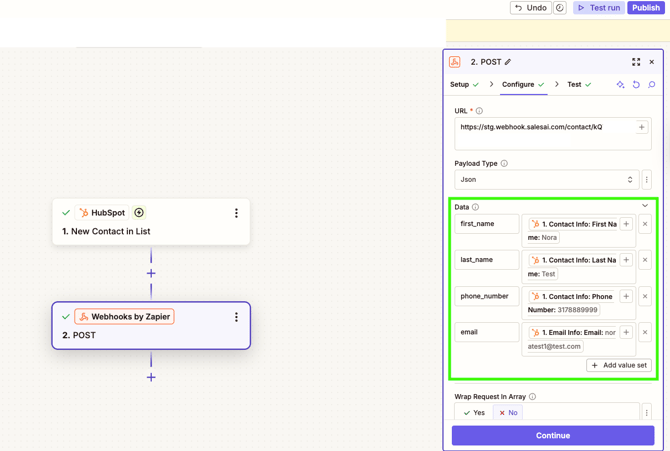
- Review your mapping; it should resemble the structure shown below.
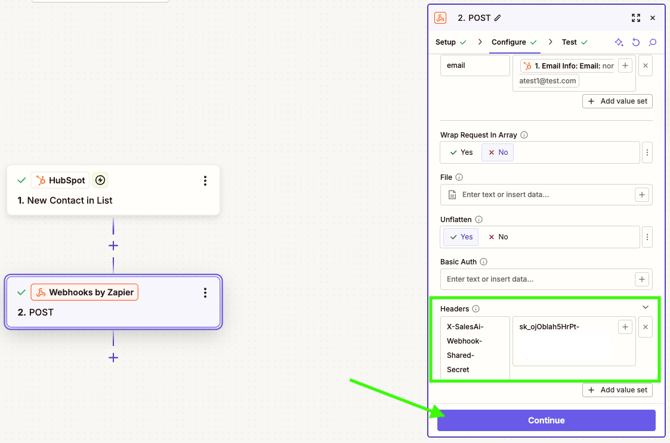
- In the Headers section of the POST step, add the key X-SalesAi-Webhook-Shared-Secret. Paste the Secret Key from your SalesAi webhook settings into the adjacent value box. Click Continue.
- Click Test & Continue. You should receive a confirmation that the request was successful.
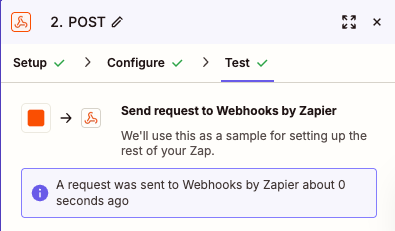
- Verify the integration by checking the Contacts page in SalesAi to ensure the test record has been created.

- At the top of the Zap editor, click the Dropdown arrow next to "Untitled Zap" and select Rename.
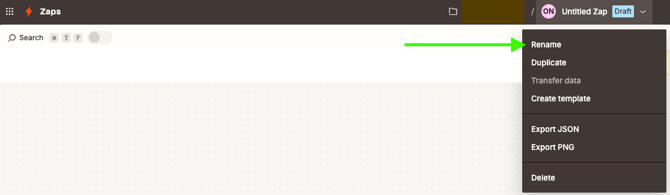
- Name your Zap (e.g., "HubSpot Leads to SalesAi").

- Keep your Zap in Draft status until you are ready to go live, then click Publish!
Outbound - Send Post Call Data back to HubSpot
These are all the data fields we can currently push out of SalesAi to your CRM/App via Webhooks.
- Contact Data: Information present on the Contact in SalesAi
- Call Direction: Ex. OUTBOUND
- Call Flow: Ex. PROMPT
- Call Status: Ex. SUCCESS
- Call Outcome: Ex. ANSWERED
- Call Summary: Summarizes the call Transcript
- Call Transcript
- Call Recording URL
- Call Duration
Setting up the Zap
The first step in pushing data out of SalesAi is to set up our Zap within Zapier. You can set this up and test it before upgrading the account, but you will need to upgrade it to publish the Zap.
Building the CatchHook
- Go to Zapier and click Create
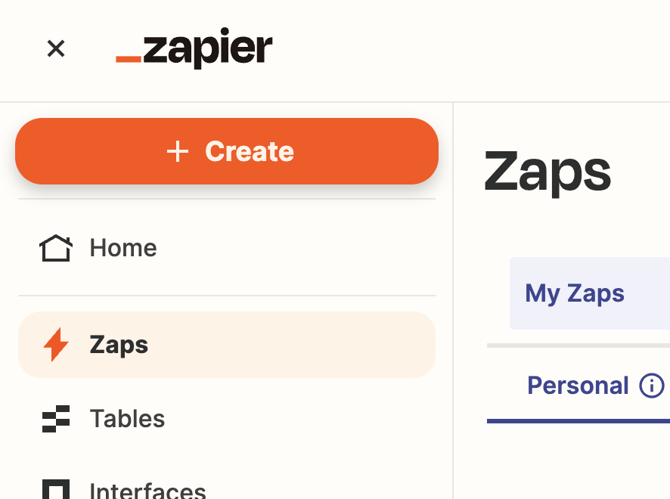
- Click on Zaps
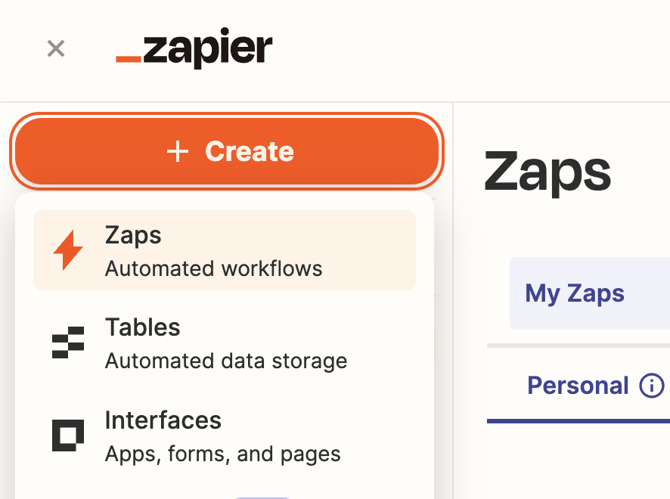
- Click on Trigger
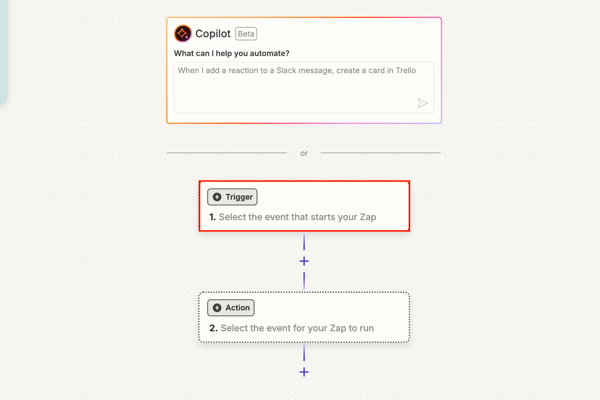
- Select the Webhooks option
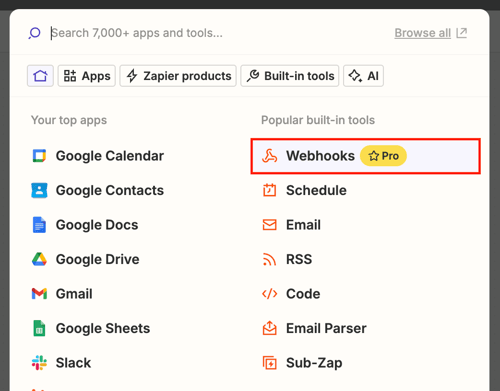
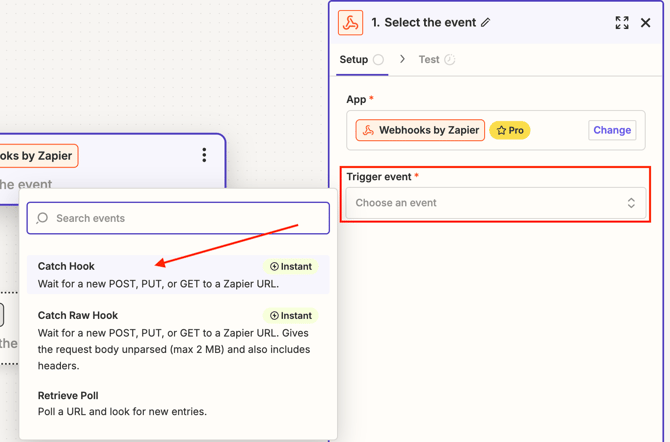
- Select CatchHook as the Trigger Event. Click Continue at the bottom right.
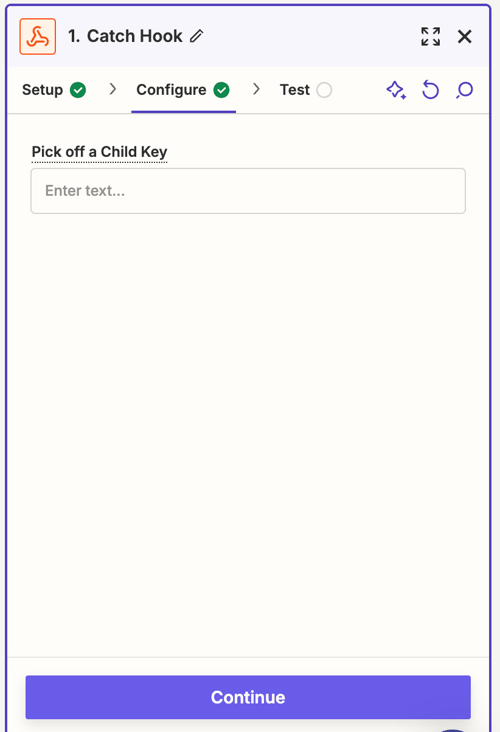
- You may skip the "Pick off a Child Key" field, there is no setup for it.
- . Click Continue again.
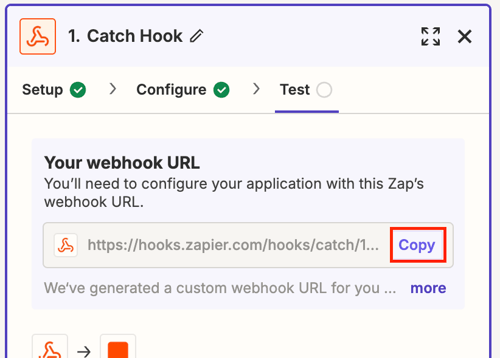
- Copy the provided Webhook URL.
Testing the CatchHook
-
-
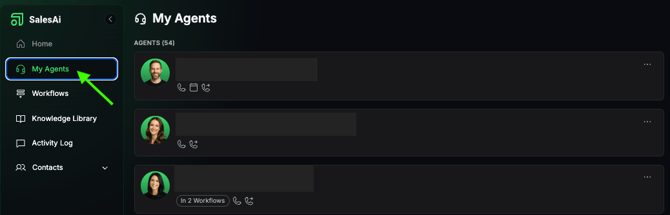
- In a new browser tab, log in to SalesAi and select My Agents from the left sidebar.
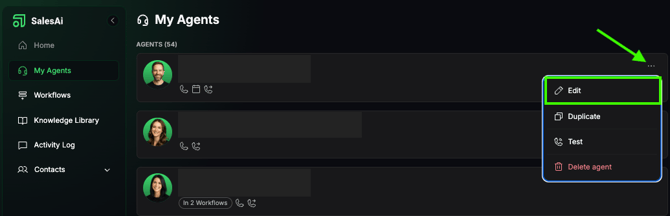
- Click the three dots next to your agent and select Edit.
- Go to the Tools tab and paste the Zapier Webhook URL into the Agent’s Post-call Webhook field.

- Click Save changes.

- Test the Integration
- Ensure your SalesAi Workflow is active.
- Trigger a real call through the Workflow using one of the methods below:
- Inbound Test: Call the phone number connected to the Workflow and have a brief conversation with the Agent.
- Outbound Test: Add yourself as a contact in SalesAi, manually enroll yourself into the Workflow, and have a conversation with the Agent. If your Agent uses a Book a Meeting or Live Transfer CTA, make sure the conversation lasts long enough for the booking or transfer action to occur successfully.
Important: The Test Call function is not suitable for validating post-call integrations or webhook payloads. Always perform a real inbound or outbound call through an active Workflow when testing integrations.
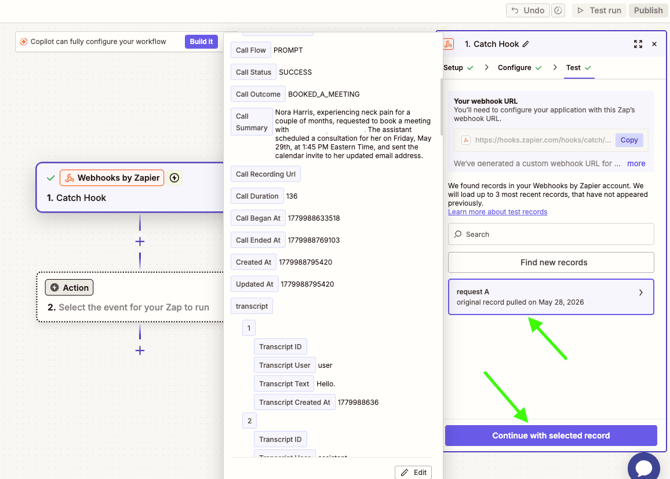
- Once the call is completed, return to Zapier and click Test trigger.
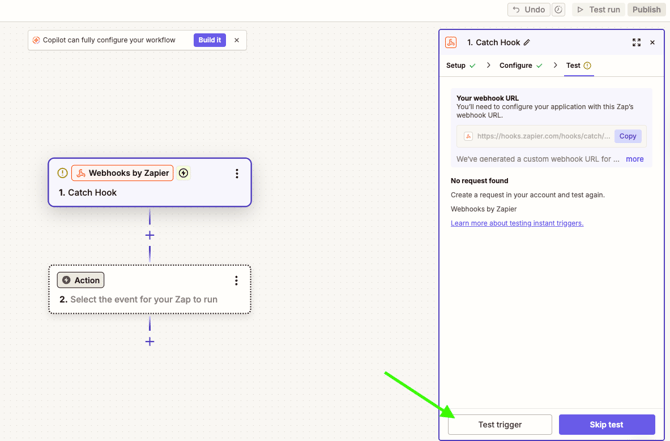
- After a test record is found, select it and click Continue.
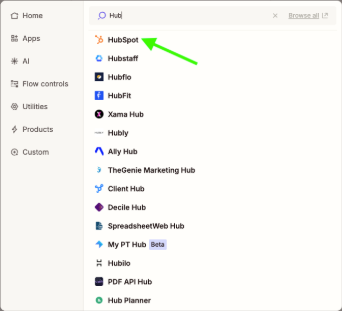
- In the Action step, search for and select HubSpot.
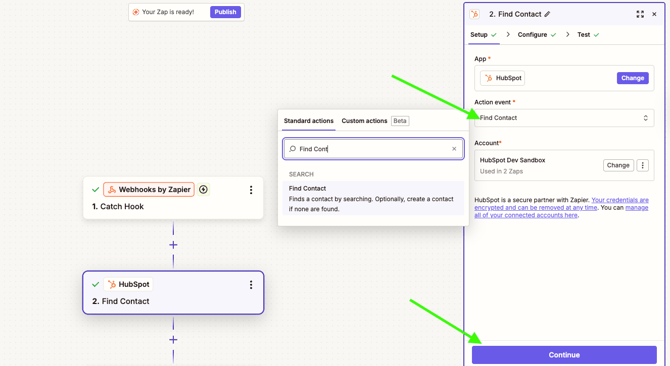
- Select Find Contact as the action event and click Continue.
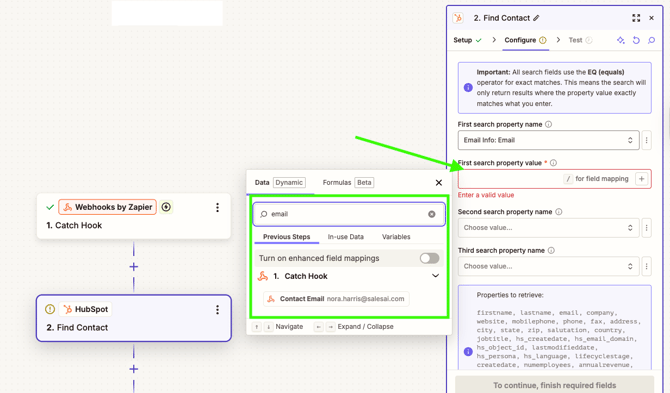
- In the First search property name field, search for and select Email.
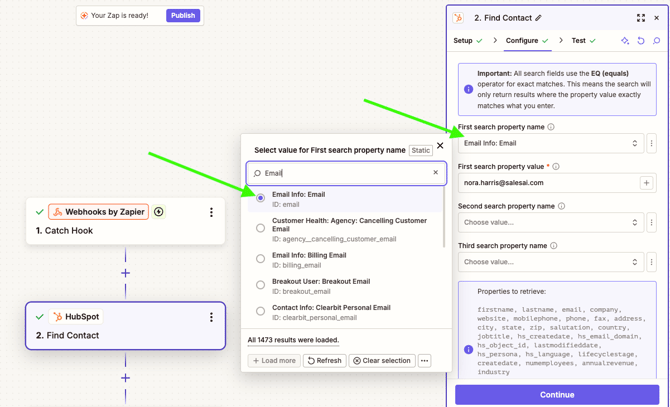
- In the First search property value field, map the email address captured in the Catch Hook step.
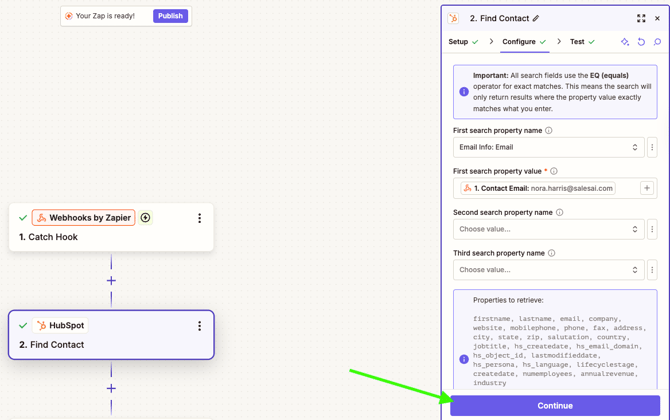
- Click Continue.
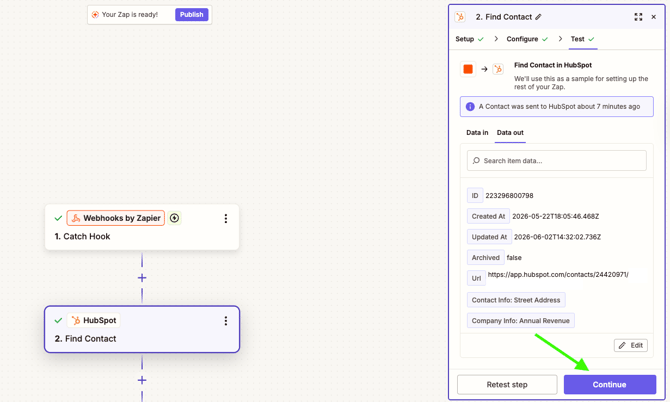
- Click Test step, then click Continue.
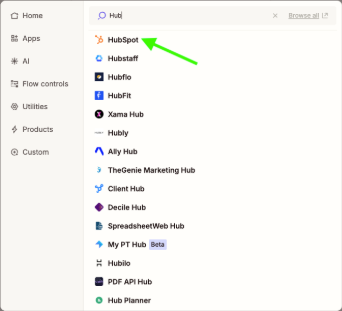
- Add another step and select HubSpot as the app.
- There are two options that would likely be the best for the Action event:
- Create or Update Contact
- Make sure to add custom fields in HubSpot
- Create Engagement
- Adds a note, task, call, etc to a contact.
- In this example we will select Create Engagement as the action event. Connect your account if prompted and click Continue.
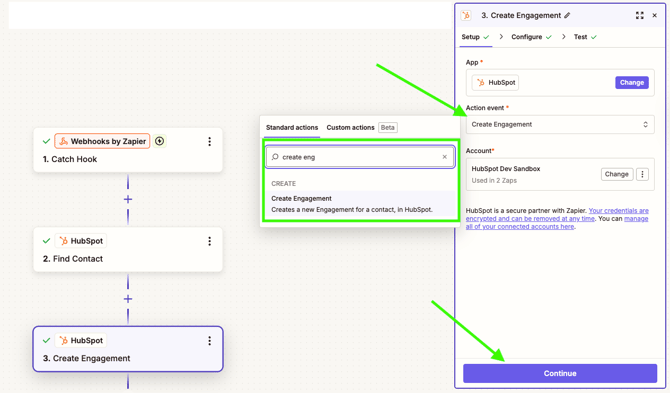
- In the Engagement Type field, select where the information should be sent (e.g., Note or Task).
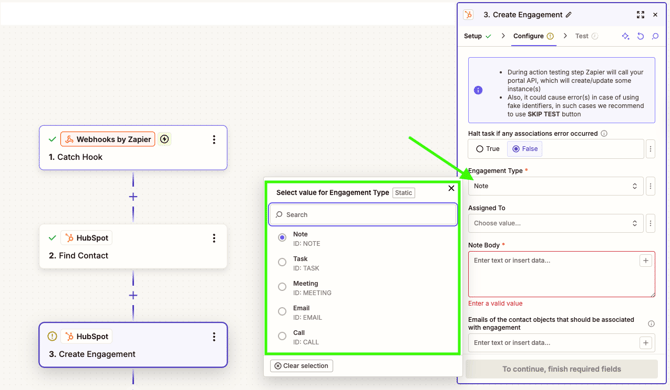
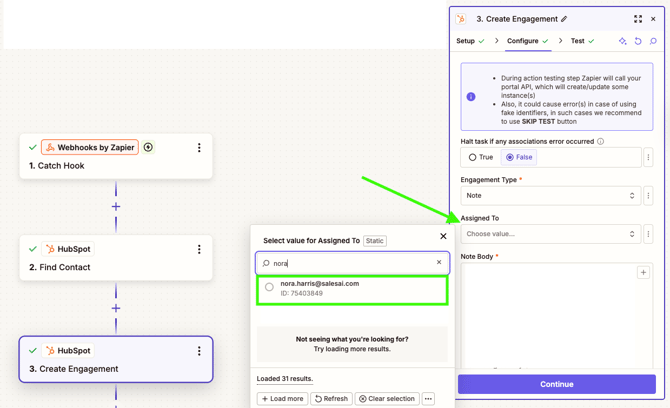
- For this example, we will use Note. In the Assigned To field, select the email address associated with the test contact.
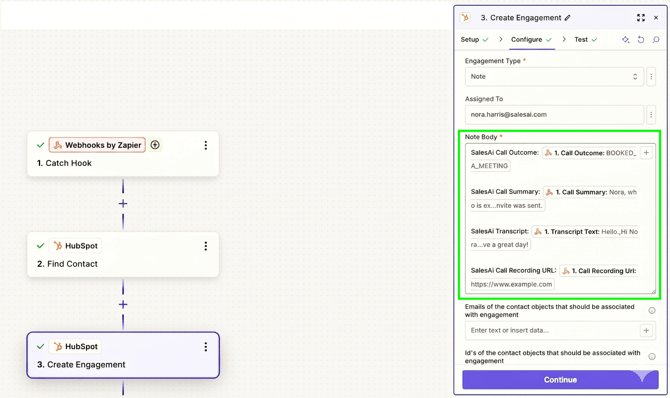
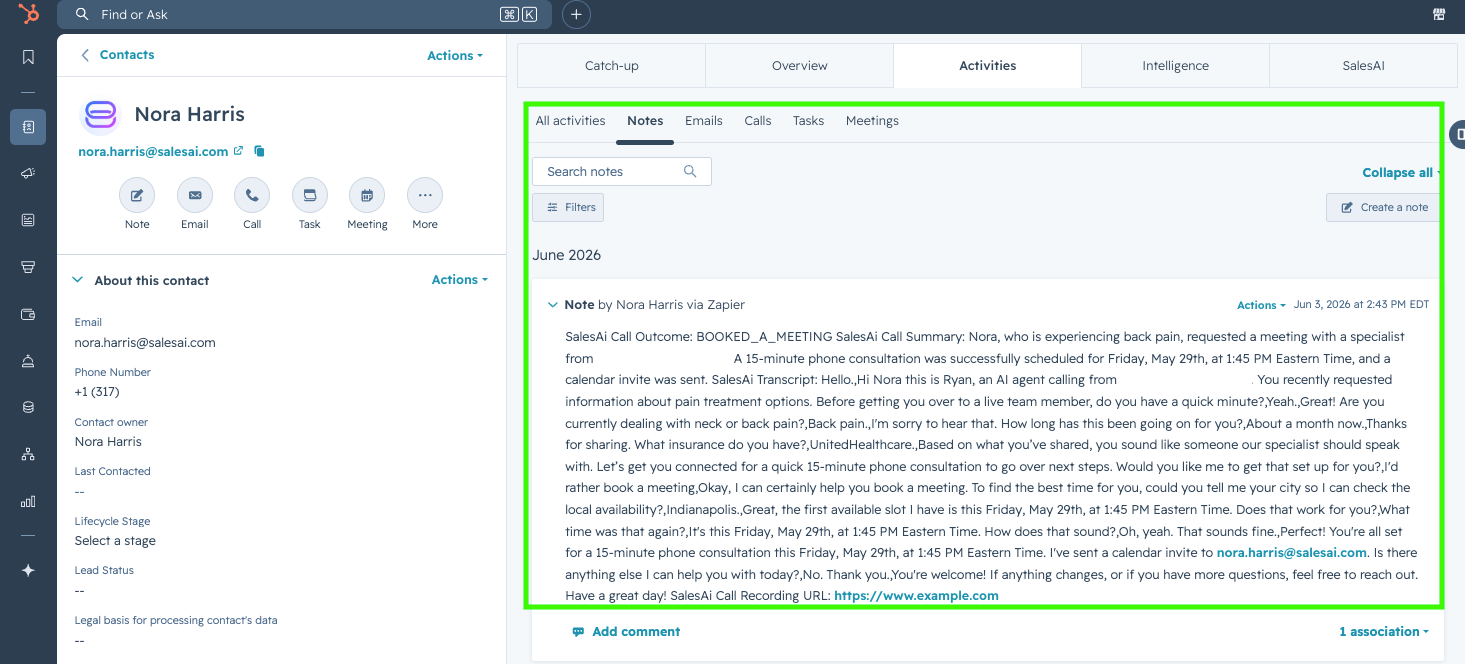
- In the Note Body field, map the call data from the Catch Hook step (e.g., Summary, Outcome, Recording URL). You can add static text to label these fields clearly in HubSpot.
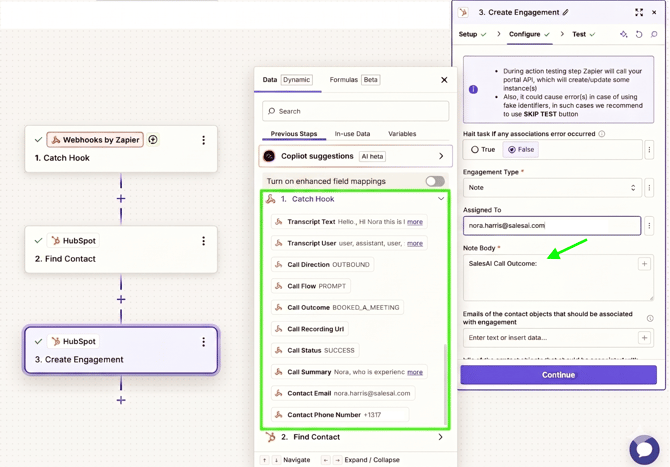
- Review your mapping; the body should look similar to the example below.
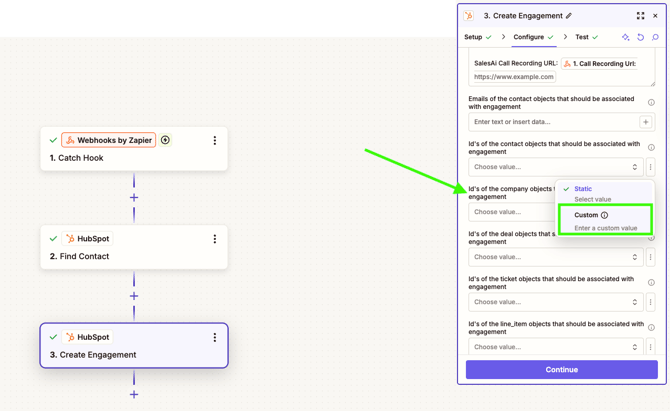
- Scroll to the Associations section, find the contact ID field, click the three dots and select Custom.
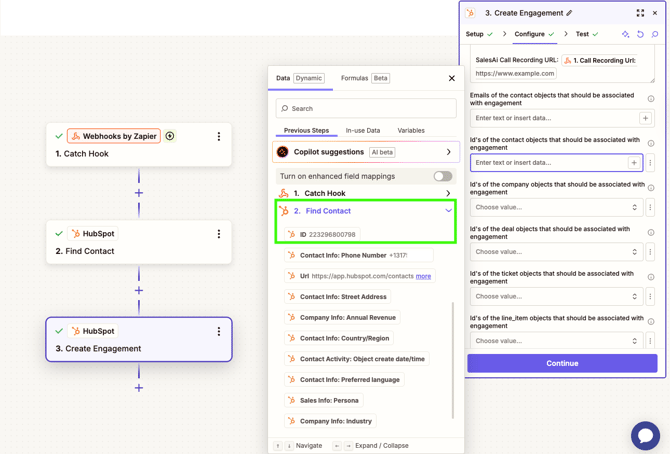
- Select the ID from the HubSpot Find Contact action to link the note to the correct contact.
- Click Continue.
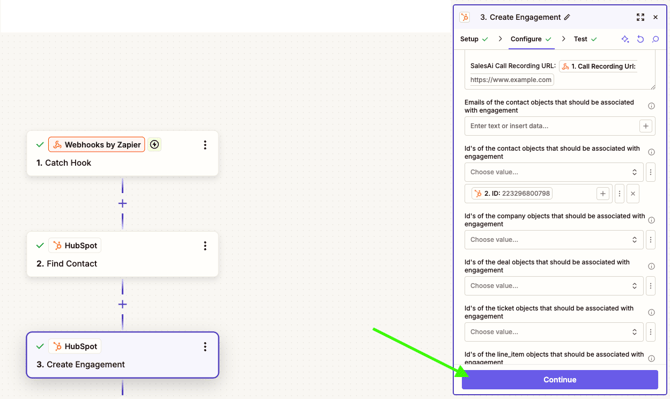
- Click Test step. You should receive a confirmation that the engagement was sent to HubSpot.
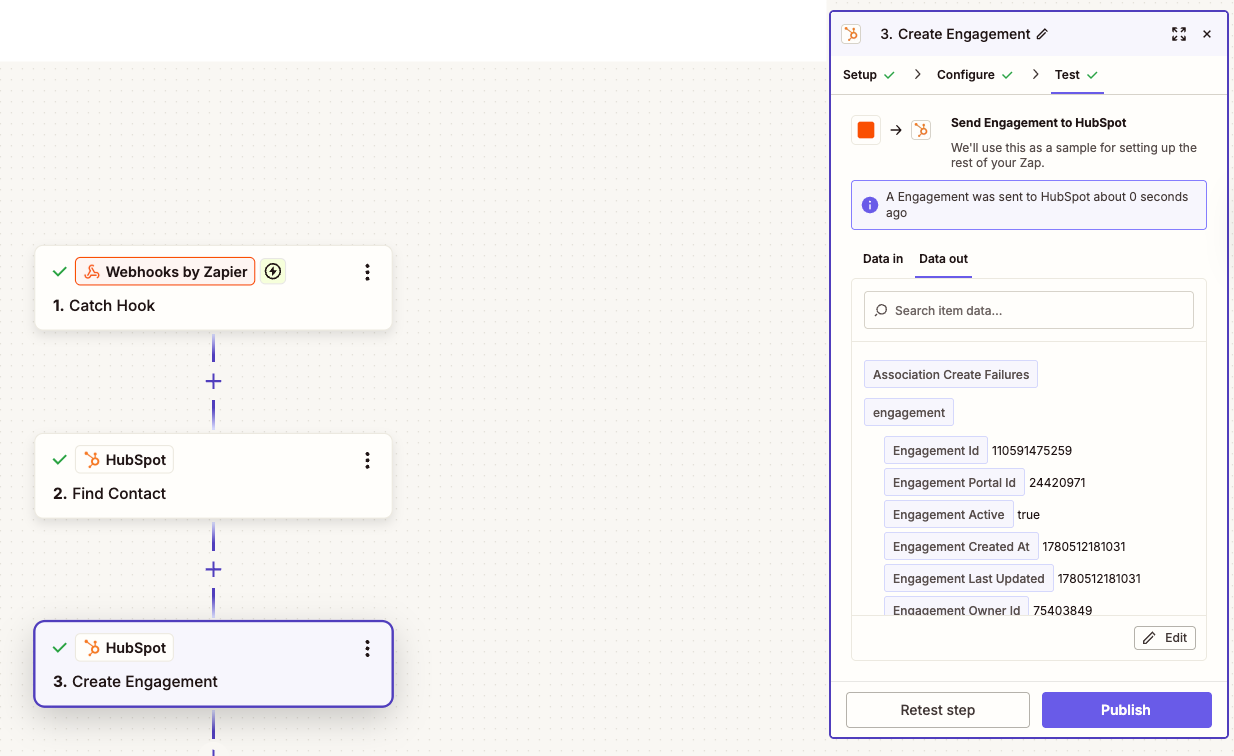
- Verify that the note has appeared on the contact record in HubSpot.
- Rename your Zap (e.g., "SalesAi Post-Call to HubSpot") and Publish when ready!